EdgeSolutions JetPack FAQ
Hardware acceleration
How do i install cuda acceleration?
The EdgeDevice will be sent out without any CUDA related software, since it need around 5GB of disk-space. Install all needed Libraries for interacting with the GPU:
$ sudo apt update
$ sudo apt install nvidia-jetpack
You can verify the installed libraries with the command jetson_release.
If the program isn’t installed you have to install the package jetson-stats via pip3:
$ pip3 install jetson-statsThe output should look like the this:
$ jetson_release
Software part of jetson-stats 4.3.1 - (c) 2024, Raffaello Bonghi
Model: PCB Arts - EdgeKit - Jetpack 5.1.1 [L4T 35.3.1]
NV Power Mode[0]: MAXN
Serial Number: [XXX Show with: jetson_release -s XXX]
Hardware:
 - Module: Check with sudo
Platform:
 - Distribution: Ubuntu 20.04 focal
 - Release: 5.10.104-tegra
jtop:
 - Version: 4.3.1
 - Service: Inactive
Libraries:
 - CUDA: 11.4.315
 - cuDNN: 8.6.0.166
 - TensorRT: 8.5.2.2
 - VPI: 2.2.7
 - Vulkan: 1.3.204
 - OpenCV: 4.5.4 - with CUDA: NO
How do i use gpu acceleration in my docker container?
First, make sure you have installed the docker runtime:
$ sudo apt update
$ sudo apt install docker.io
Nor you can run docker containers.
With the parameter --runtime nvidia you can use the GPU of the EdgeDevice in the container:
$ docker pull dustynv/pytorch:2.6-r36.4.0-cu128
2.6-r36.4.0-cu128: Pulling from dustynv/pytorch
a186900671ab: Pull complete
[...]
d17362a386cf: Pull complete
Digest: sha256:f0ef5a2c0442809e53e55ce192e7aaa72fec72e8a58f648ff2bf93c899a09b48
Status: Downloaded newer image for dustynv/pytorch:2.6-r36.4.0-cu128
docker.io/dustynv/pytorch:2.6-r36.4.0-cu128
$ docker run --runtime nvidia --rm -it --network host dustynv/pytorch:2.6-r36.4.0-cu128
root@edgekit:/# python3
Python 3.10.12 (main, Jan 17 2025, 14:35:34) [GCC 11.4.0] on linux
Type "help", "copyright", "credits" or "license" for more information.
>>> import torch
>>> torch.cuda.is_available()
True
>>>
How do i install jtop for device monitoring?
jtop is a real-time monitoring tool for Jetson platforms, based on Python and tegra-stats.
How do i enable MAXN power mode?
To unlock full performance on the Jetson, NVIDIA recommends enabling the MAXN power mode.
Set MAXN mode
sudo nvpmodel -m 0-
Note: On Jetson Orin NX, profile
0typically corresponds to MAXN. -
Alternatively, launch
jtop, pressP, and select the desired power profile.
How to identify the software version of my EdgeDevice?
To identify the software version of your EdgeDevice, run following command:
$ cat /etc/edgeboard_version
Version: 36.4.0_2025-02-25
Flavor: orin_generic
In this case, the EdgeDevice was installed with the L4T Version 36.4.0., built on 2025-02-25.
In case you get an error, that the file does not exist:
$ cat /etc/edgeboard_version
cat: /etc/edgeboard_version: No such file or directory
run the command
$ uname -r
5.15.148-tegra
to get the linux kernel release.
When it is 5.10.X you have L4T version 35 installed. In case of 5.15.X you have L4T version 36.4 installed.
How to identify the SOM type being installed in my EdgeDevice?
First, you need to connect the EdgeDevice with a USB cable to a Linux PC. Then you start the EdgeDevice in recovery model.
With the command lsusb in the Linux PC, you can find the Device:
$ lsusb
Bus 002 Device 001: ID 1d6b:0003 Linux Foundation 3.0 root hub
Bus 001 Device 002: ID 05e3:0608 Genesys Logic, Inc. Hub
Bus 001 Device 022: ID 0955:7423 NVIDIA Corp. T234 [Orin NX 8GB] recovery mode
Bus 001 Device 001: ID 1d6b:0002 Linux Foundation 2.0 root hub
Important is the line of the NVIDIA device, the EdgeDevice.
Have a look at the device-id: 0955:7423. The second part tells you the SOM type, in this case a Orin NX with 8GB of RAM.
Just look your device id up in this table:
| SOM type | Device ID |
|---|---|
Jetson Orin NX 16GB |
0955:7323 |
Jetson Orin NX 8GB |
0955:7423 |
Jetson Orin Nano 8GB |
0955:7523 |
Jetson Orin Nano 4GB |
0955:7623 |
Jetson Nano |
0955:7f21 |
Jetson Xavier NX |
0955:7e19 |
How do i change the keyboard layout?
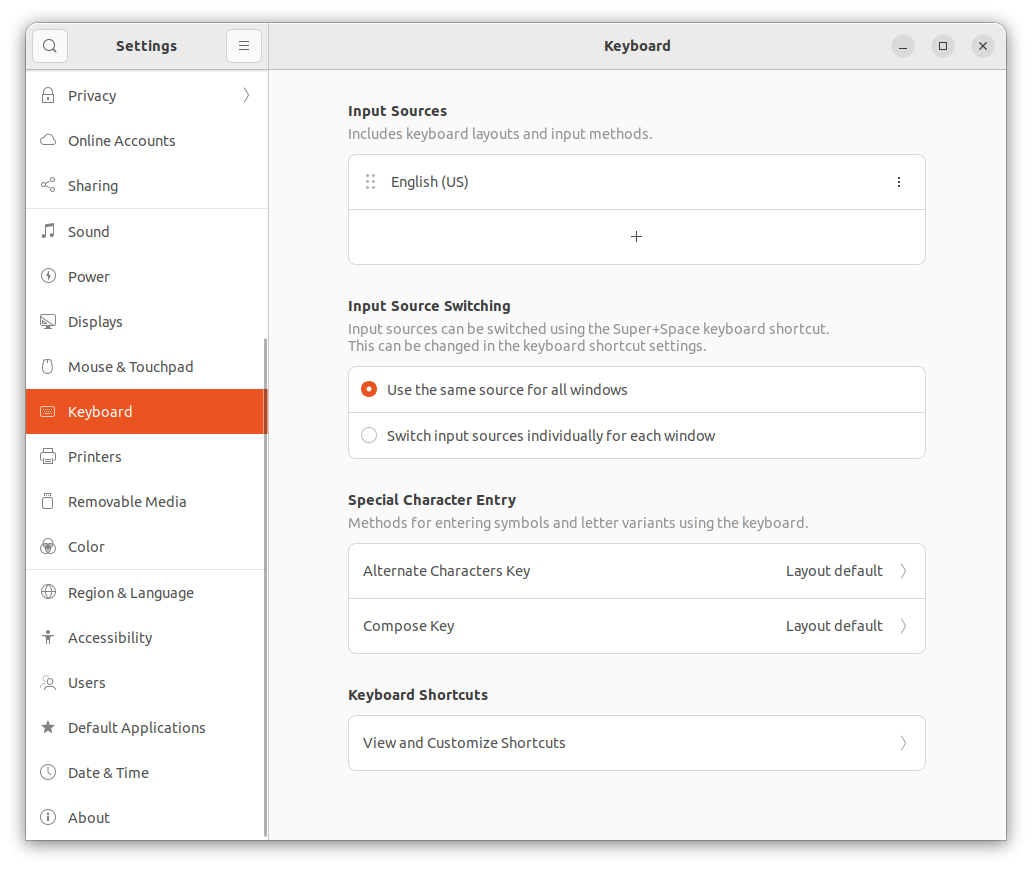
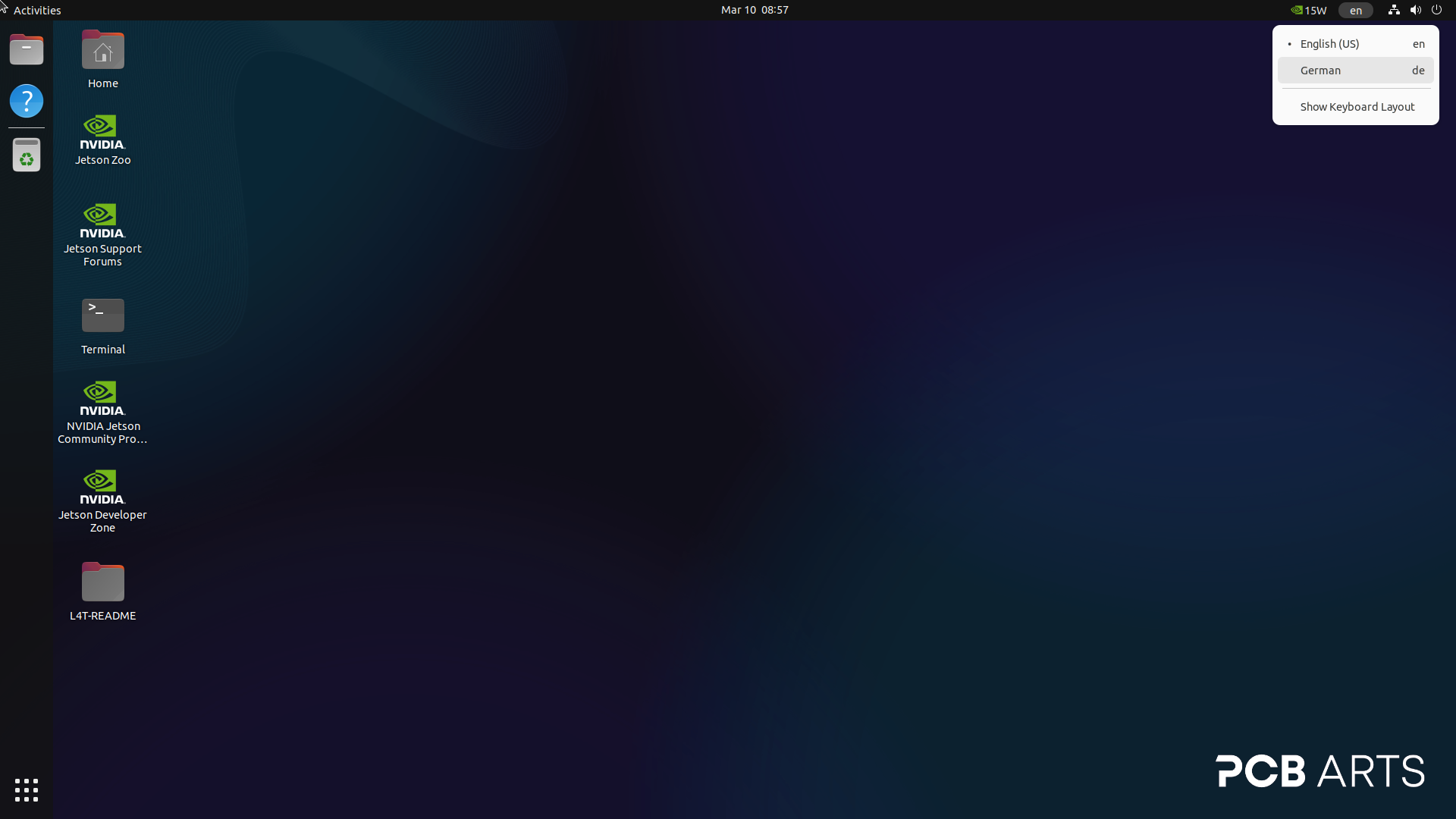
To change the keyboard layout, you need to add the layout to the list of keyboard input sources. After this, a new option on the top right appears to switch between the layouts back and forth.
-
Open the menu by clicking on the 3x3 icon on the left.
-
Enter Settings to open the Settings app.
-
Select the section Keyboard in the list on the left.
-
Click on the + button to add a new layout.
-
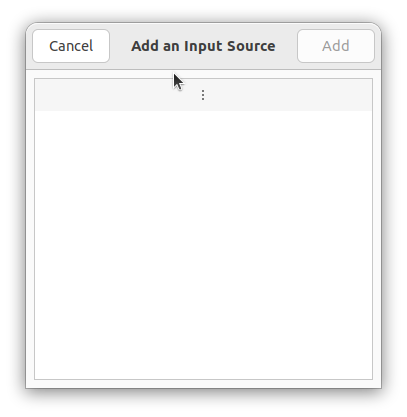
In the next screen, double click on the three dots in the empty list.
-
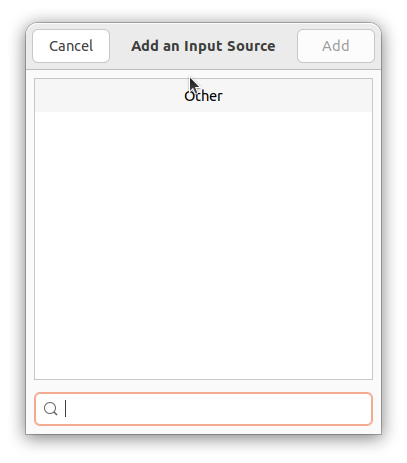
Then click on the entry Other in the list.
-
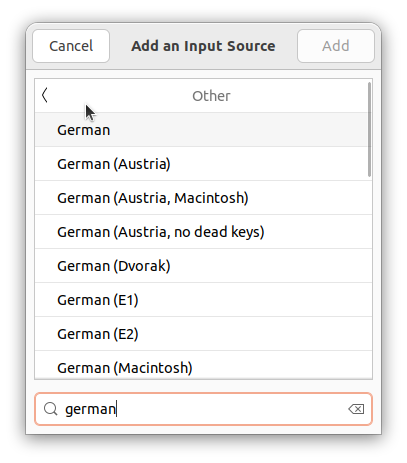
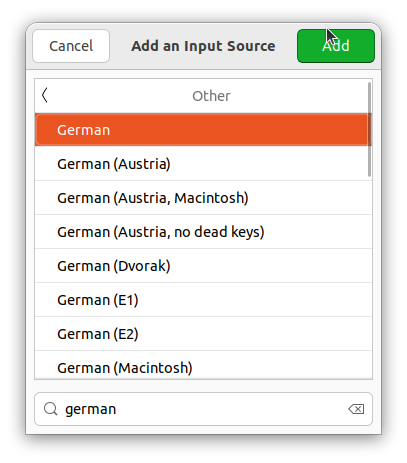
After some loading, a list of keyboard layout appear. Select the layout you want to add. You can use the search bar at the bottom.
-
Add the selected keyboard layout with the Add button.
-
Now you can switch between the keyboard layouts with the icon on the top right.